
Restart a stuck Print Spooler
When a Windows print queue jams and nothing prints, you clear it from the command line in three ordered steps: stop the Print Spooler service, delete the stuck spool files, then start the service again. This lab uses the command line; a Services (services.msc) version follows when that tool is available.
Steps
- 1
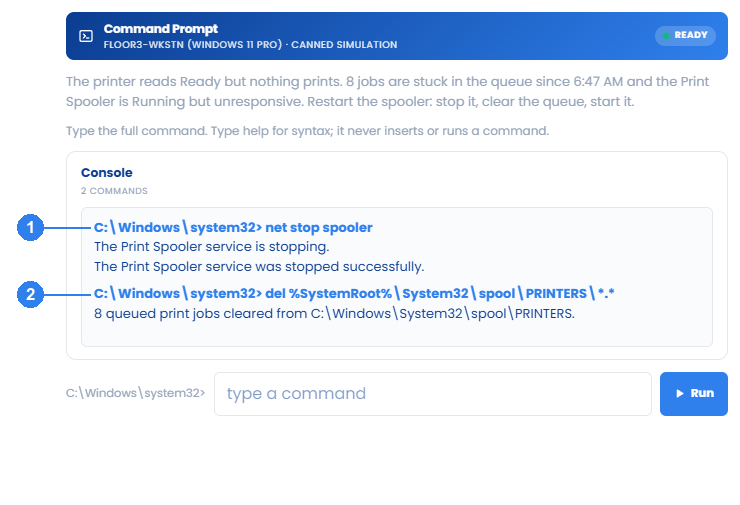
Stop the Print Spooler service so the hung job releases its lock: net stop spooler. The queue cannot be cleared while the service is running.
- 2
Delete the stuck spool files: del /q /f %SystemRoot%\System32\spool\PRINTERS\*.*. With the service stopped this is safe and clears every queued job.
- 3
Start the Print Spooler again: net start spooler. The service reports that it started successfully. Have the user resend a job to verify printing.
What you should see
After the third command the service reports started and the queued jobs process normally. A resent test page prints.