
Checked against what you do
Each step is checked against what you actually do in the simulated tool, not against which answer sounds right.
65 hands-on labs across CompTIA A+, CompTIA Network+, and CompTIA Security+. Each one is a procedure from documentation, worked step by step in a simulated tool. 52 of them are free to use without an account. They are not exam questions and not a score predictor.
A hands-on IT lab is a practice task where you do the job instead of reading about it. Each RTJ lab gives you a goal, the ordered steps, and what you should see when a step works, then checks every step against what you actually do in the simulated tool. Labs pair with the Study Guide for the idea behind a step and the Help Desk Simulator for the judgment calls around it.
52 labs are free to use with no account: 34 for CompTIA A+, 11 for CompTIA Network+, and 7 for CompTIA Security+. They are the sample. The other 13 are included with Academy, Lifetime, the teacher plans, and school and district licenses. See pricing for what each plan includes.
Browse the labsEach step is checked against what you actually do in the simulated tool, not against which answer sounds right.
When you are stuck, the hints on 60 of the 65 labs explain the why and the where first and show the exact command only as the last rung.
Every lab has a public how-to page with the objective, the steps, and the outcome, so you can read the procedure before you start.
Open the Labs page and choose by certification or objective. Each card shows the objective it covers and says whether the lab is free or included with Academy.
Do the task in the simulated tool, in the order the lab lists. Each step is checked against what you did.
The first hint nudges, the next names the tool, and only the last shows the exact command. Stop the moment you are unstuck.
Run the lab again the next day and see whether you still need a hint. 31 of the 65 labs also end with a few quick prompts about why a step worked and how you would check it if it failed.
Four free labs, photographed from the live site: a command-line lab, a hands-on bench, a firmware screen, and a security console. Each one opens with no account.
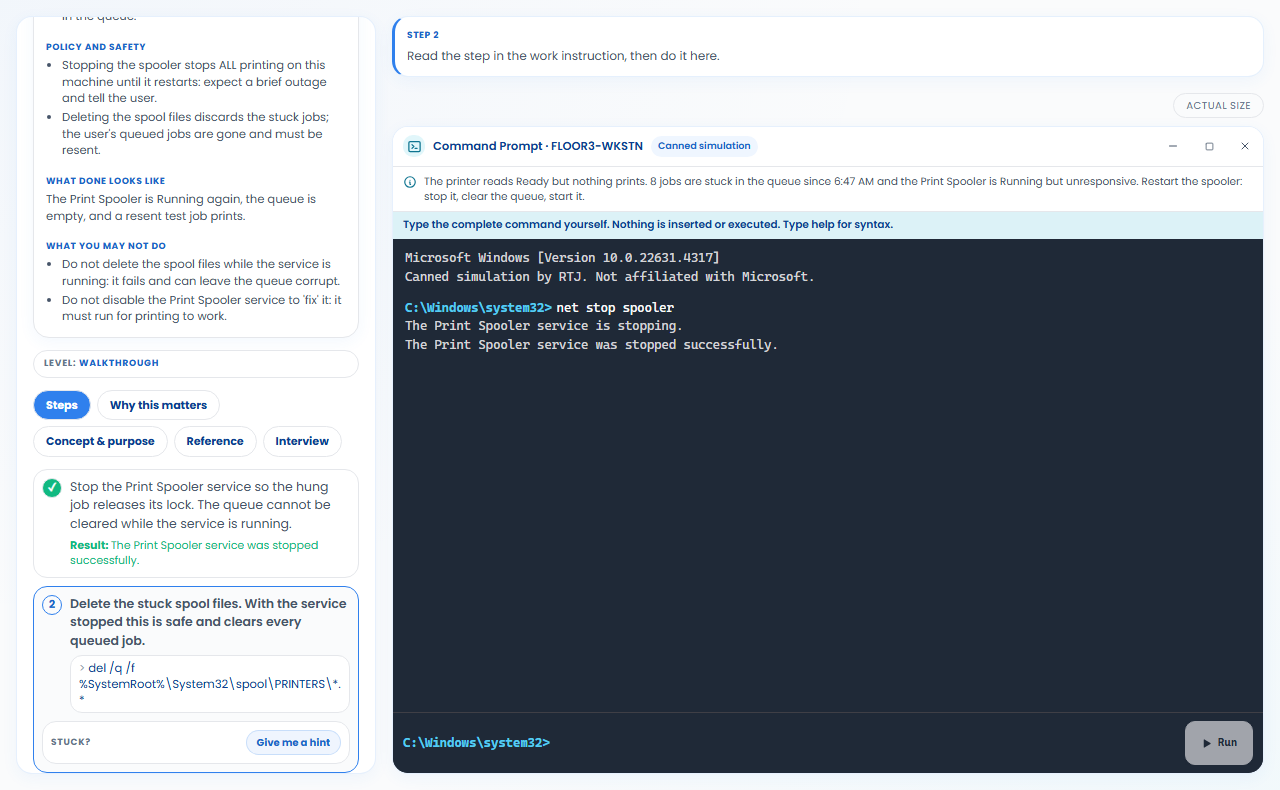
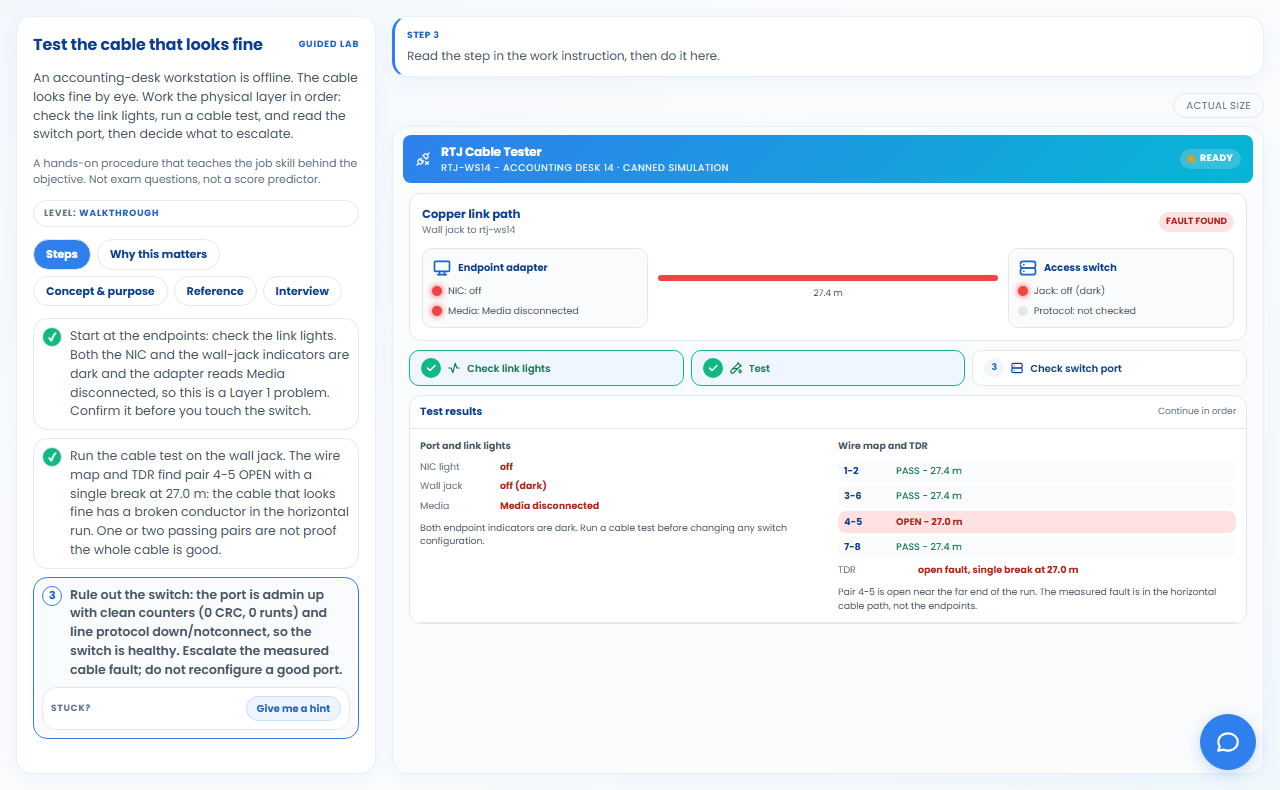
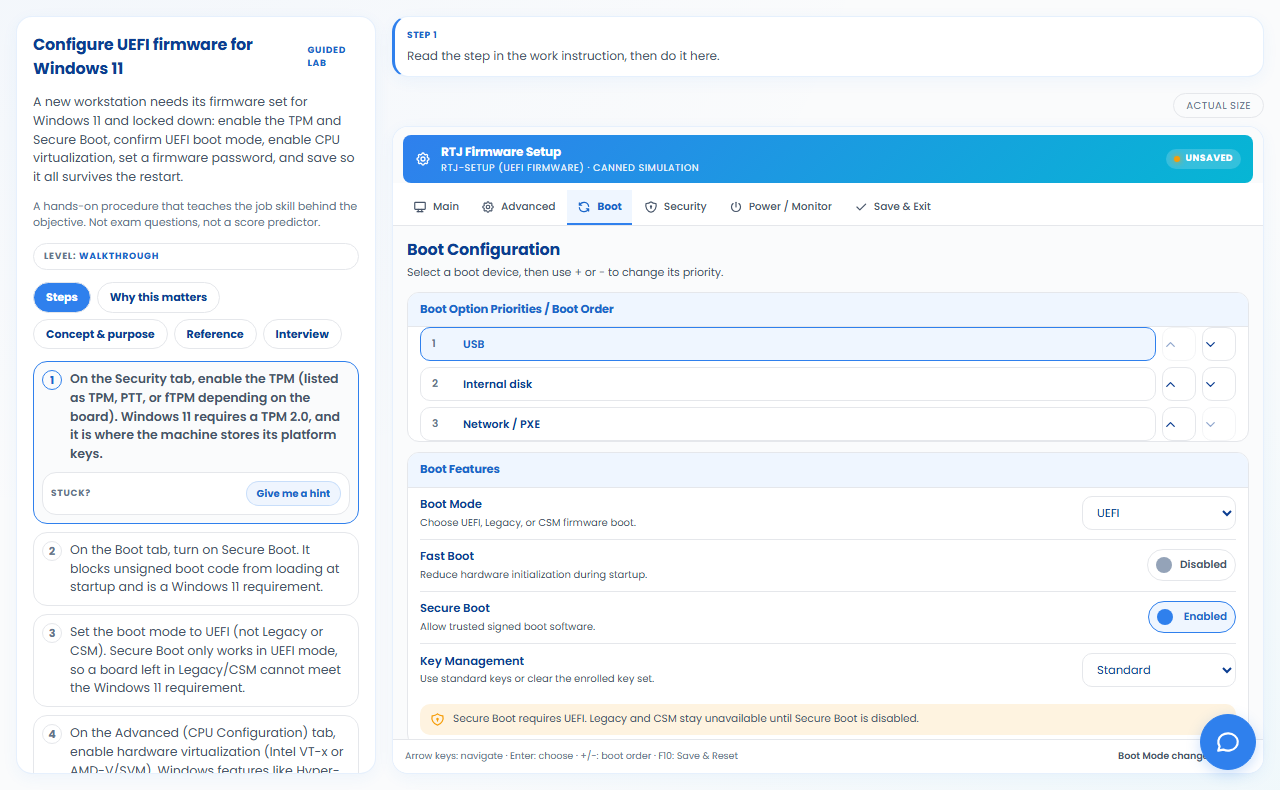
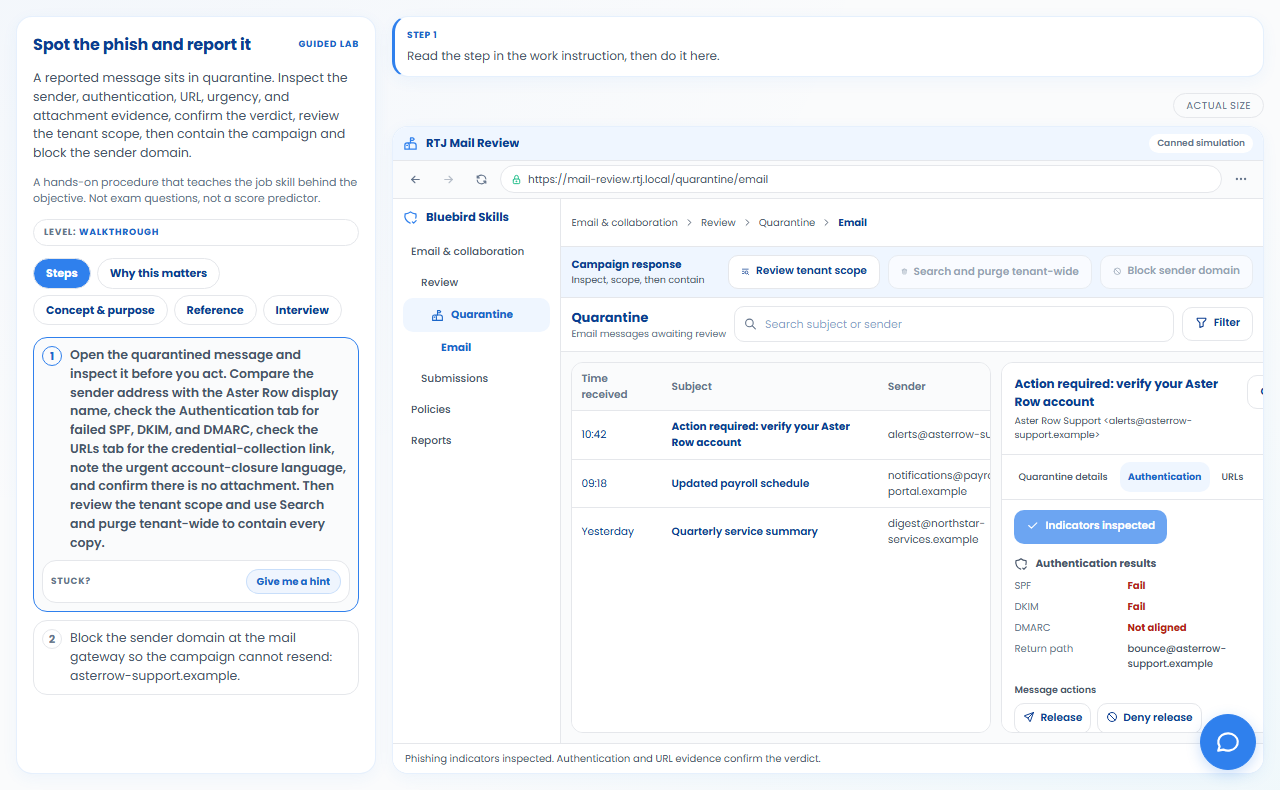
The tools in a lab are simulated and use canned data.
52 of the 65 labs are free to use with no account: 34 for CompTIA A+, 11 for CompTIA Network+, and 7 for CompTIA Security+. The other 13 are included with Academy, Lifetime, the teacher plans, and school and district licenses. Pro includes the free labs but not the other 13.
No. A lab teaches the procedure behind an objective, the way a help desk tech works a printer that will not print. It is not an exam question and it does not predict a score or tell you when to schedule.
No. Labs run in your browser with simulated tools, so there is nothing to install and no hardware to buy.
Every lab lists the CompTIA objectives it covers, on its card and on its how-to page. One lab can serve more than one objective, because a real task does.
Yes, with a teacher plan. A teacher can assign a lab to a class from classwork and see completion there, and every one of the 65 labs has a teacher guide with what a correct run looks like and the mistakes to watch for.
Free includes one full Adventure lesson per track and 5 Sim tickets per day. Upgrade if and when you want more.